
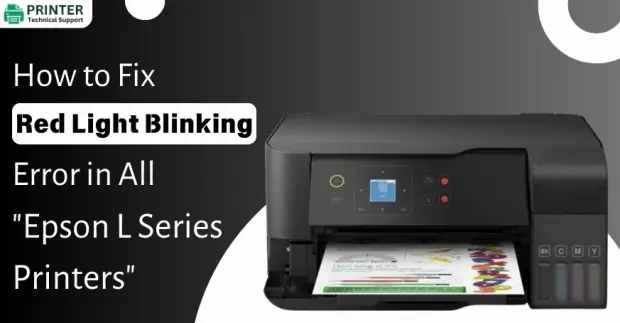
How to Fix Red Light Blinking Error in All "Epson L Series Printers" ?
Epson L Series printers are widely used for their efficiency and high-quality printing capabilities. However, users often encounter frustrating red light blinking errors, which can indicate a variety of issues. This article will help you identify the possible causes and provide step-by-step solutions to resolve the problem effectively.
Common Causes of the Red Light Blinking Error
- Waste Ink Pad Overflow: Epson printers track the ink waste collected in an internal pad. When the pad reaches its limit, the printer triggers a blinking red light error.
- Paper Jam: A small piece of paper stuck in the printer can cause the light to blink continuously.
- Cartridge Recognition Issue: If the printer does not recognize the ink cartridges properly, it may display an error.
- Low or Empty Ink Levels: Running out of ink can cause the red light to blink as a warning.
- Scanner or Hardware Malfunction: Internal hardware failures may also trigger this error.
List of Epson's L Series printers
Below we have listed the "Epson L Series Printers". Where Red Light Blinking error is a common in these:
| Epson EcoTank L210 | Epson EcoTank L575 | Epson L606 | Epson L3260 | Epson L6171 |
| Epson EcoTank L220 | Epson EcoTank L655 | Epson L850 | Epson L3560 | Epson L6191 |
| Epson EcoTank L355 | Epson EcoTank L656 | Epson L1455 | Epson L4150 | Epson L6270 |
| Epson EcoTank L365 | Epson L200 | Epson L3110 | Epson L4160 | Epson L6490 |
| Epson EcoTank L375 | Epson L350 | Epson L3150 | Epson L4260 | Epson L8160 |
| Epson EcoTank L455 | Epson L380 | Epson L3160 | Epson L5190 | Epson L8180 |
| Epson EcoTank L475 | Epson L395 | Epson L3210 | Epson L5290 | Epson L14150 |
| Epson EcoTank L555 | Epson L396 | Epson L3250 | Epson L5590 | Epson L15150 |
| Epson EcoTank L565 | Epson L495 | Epson L3251 | Epson L6161 | Epson L15160 |
Step-by-Step Solutions to Fix the Issue
The below methods will help you identify the possible causes and provide step-by-step solutions to resolve the problem effectively.
Method 1: Resetting the Waste Ink Pad Counter
If your printer’s ink pad counter is full, you need to reset it using the Epson Adjustment Program:
Step 1: Download and install the Epson Adjustment Program specific to your printer model.
Step 2: Run the program and select your printer model.
Step 3: Click on “Particular Adjustment Mode”
Step 4: Choose “Waste Ink Pad Counter” and press “OK”
Step 5: Click “Check” to see the current counter status.
Step 6: Press “Reset” to reset the counter.
Step 7: Restart your printer and check if the issue is resolved.
Method 2: Clearing a Paper Jam
Step 1: Turn off the printer and unplug it.
Step 2: Open the printer cover and carefully remove any jammed paper.
Step 3: Check the rollers for debris and clean them if necessary.
Step 4: Close the printer cover and turn the printer back on.
Method 3: Re-installing Ink Cartridges
Step 1: Turn off the printer and open the ink compartment.
Step 2: Remove the ink cartridges and reinstall them properly.
Step 3: Ensure that each cartridge is securely placed.
Step 4: Turn on the printer and check if the blinking red light has stopped.
Method 4: Re-filling Ink and Re-setting Ink Levels
Step 1: Check the ink levels and refill if necessary.
Step 2: After refilling, hold the ink reset button for 5-10 seconds.
Step 3: Restart the printer and check if the error has been resolved.
Method 5: Performing a Hard Reset
Step 1: Turn off the printer and unplug it from the power source.
Step 2: Press and hold the power button for 30 seconds.
Step 3: Plug the printer back in and turn it on.
Step 4: Check if the blinking light has disappeared.
Preventive Measures to Avoid Future Errors
- Regularly clean the printer to prevent dust and debris buildup.
- Ensure that you use original Epson ink to avoid cartridge recognition issues.
- Do not overfill ink tanks, as excess ink can cause errors.
- Periodically check and replace the waste ink pad if necessary.
Also Read:
- How To Fix Epson L380 Red Light Blinking Error?
- Why is My Epson Printer Printing So Slowly?
- How to Make Epson Printer Print Without Black Ink?
- Denver
 Brand: Epson Printer
- Last Update: 18 minutes ago
 Related Articles
Top Searches in Epson Printer
Featured Articles
How to Get Canon Printer Online on MAC?
Sep 14, 2026
How to Fix Printer Printing Horizontal Black Lines?
Sep 14, 2026
How to Scan from HP Printer to Computer Windows 10?
Sep 14, 2026
Ricoh Printer Stuck on Processing
Sep 14, 2026
Brother Printer Only Printing in Black and White
Sep 14, 2026
How to Clean Kodak Printhead?
Sep 15, 2026
How to Install Lexmark Printer to Computer Without CD?
Sep 14, 2026
Why My Samsung Printer is Not Printing Clearly?
Sep 15, 2026
Top Questions
Why Won't My Canon Printer Print after Changing an Ink Cartridge?
Sep 15, 2026
How do I Fix a Canon Printer 1403 Error?
Sep 14, 2026
How do I Connect My Canon MG3050 Printer to WiFi?
Sep 14, 2026
How to Change Printer from Offline to Online Canon?
Sep 14, 2026
How to Turn My Ricoh Printer Online from Offline?
Sep 14, 2026
Brother MFC Printer Won't Print Black Despite Full Ink Cartridges
Sep 14, 2026
How to Fix Epson Printer Filter Failed or Stopped on Mac Error?
Sep 14, 2026
How do You Get a Lexmark Printer Back Online?
Sep 14, 2026
Categories
Article Article Article Article Article Article Article Article Article Article