
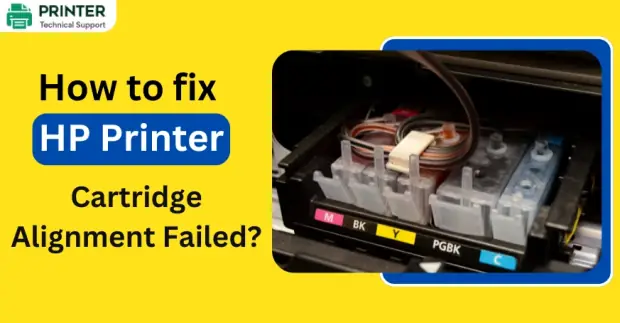
How to fix Cartridge Alignment Failed?
The “Cartridge Alignment Failed” message on an HP printer is a common issue that can interrupt your printing tasks. This error occurs when the printer cannot properly align its ink cartridges, leading to potential print quality problems.
Methods to Fix the Cartridge Alignment Issue
Below we have given the exact method to resolve this issue efficiently.
Method 1: Check Cartridge Installation
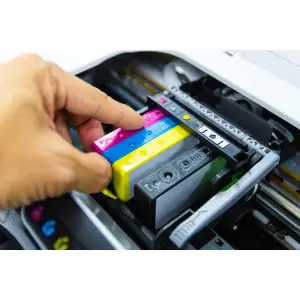
Step 1: Open the printer’s cartridge compartment and ensure the cartridges are securely installed in their designated slots.
Step 2: Remove and reinstall the cartridges if necessary, ensuring they click into place.
Method 2: Clean the Printhead
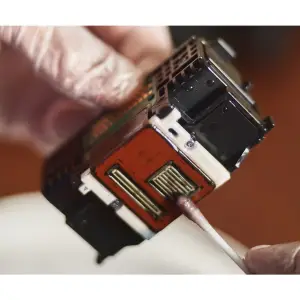
Step 1: Use the printer’s built-in utility for printhead cleaning, accessible through the printer software or control panel.
Step 2: Manually clean the printhead if the automatic process doesn’t resolve the issue. Refer to the printer manual for guidance.
Method 3: Replace Low or Faulty Cartridges
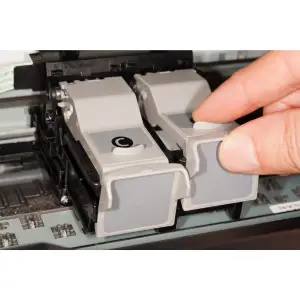
Step 1: Check the ink levels in your cartridges. Replace any empty or defective cartridges with genuine, compatible ones.
Method 4: Load Paper Properly
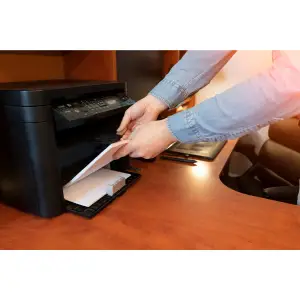
Step 1: Align the paper neatly in the input tray. Avoid overloading the tray or using wrinkled, torn, or low-quality paper.
Method 5: Update Printer Firmware
Step 1: Visit the manufacturer’s website to download and install the latest firmware for your printer. Updated firmware often includes fixes for alignment issues.
Causes of Cartridge Alignment Failure
- Improper Cartridge Installation: If the cartridges are not correctly installed or seated in their slots, the printer may fail to align them.
- Dirty Printhead: Dust, ink residue, or debris on the printhead can interfere with proper alignment.
- Low or Defective Ink Cartridge: Empty or malfunctioning ink cartridges can prevent the alignment process from completing successfully.
- Misaligned Paper: Incorrectly loaded paper or the use of low-quality paper can cause alignment errors.
- Outdated Printer Firmware: Printers running on outdated firmware might struggle to align cartridges properly.
Preventive Measures
- Regularly clean your printer to avoid dust buildup.
- Always use high-quality paper and genuine ink cartridges.
- Keep your printer firmware updated to avoid recurring issues.
Conclusion
By addressing these causes and following the troubleshooting steps, you can resolve the "Cartridge Alignment Failed" error and ensure smooth printing. For persistent problems, consult your printer’s support team for expert assistance.
Also Read:
- How to Fix Xerox Printer Error Code 016-757?
- How to Bring an Offline Konica Printer Online?
- How to Fix Windows Cannot Connect to the Printer Access is Denied?
- Denver
 Brand: Other
- Last Update: 12 hours ago
 Related Articles
Top Searches in Other
Featured Articles
How to Get Canon Printer Online on MAC?
Sep 28, 2026
How to Fix Printer Printing Horizontal Black Lines?
Sep 28, 2026
How to Scan from HP Printer to Computer Windows 10?
Sep 28, 2026
Ricoh Printer Stuck on Processing
Sep 28, 2026
Brother Printer Only Printing in Black and White
Sep 28, 2026
How to Clean Kodak Printhead?
Sep 28, 2026
How to Install Lexmark Printer to Computer Without CD?
Sep 28, 2026
Why My Samsung Printer is Not Printing Clearly?
Sep 28, 2026
Top Questions
Why Won't My Canon Printer Print after Changing an Ink Cartridge?
Sep 28, 2026
How do I Fix a Canon Printer 1403 Error?
Sep 28, 2026
How do I Connect My Canon MG3050 Printer to WiFi?
Sep 28, 2026
How to Change Printer from Offline to Online Canon?
Sep 28, 2026
How to Turn My Ricoh Printer Online from Offline?
Sep 28, 2026
Brother MFC Printer Won't Print Black Despite Full Ink Cartridges
Sep 28, 2026
How to Fix Epson Printer Filter Failed or Stopped on Mac Error?
Sep 28, 2026
How do You Get a Lexmark Printer Back Online?
Sep 28, 2026
Categories
Article Article Article Article Article Article Article Article Article Article