
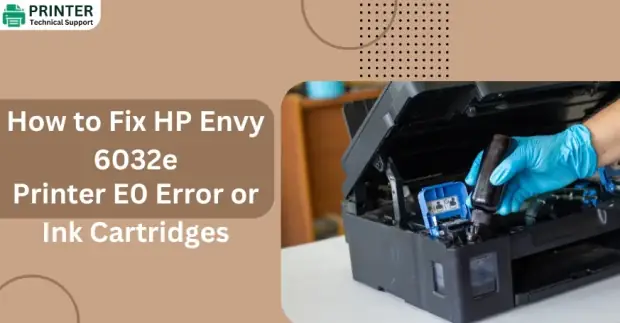
How to Fix HP Envy 6032e Printer E0 Error or Ink Cartridges
The HP Envy 6032e is a reliable printer, but like all devices, it can occasionally encounter errors. One common issue is the E0 error, often related to problems with the ink cartridges. This guide provides multiple methods to resolve this issue and ensure your printer is back to optimal performance.
Method 1: Check and Reinstall the Ink Cartridges
The E0 error often occurs due to improper installation or connection of ink cartridges. Follow these steps:
Step 1: Turn off the printer: Press the power button to switch off the device and disconnect it from the power source.
Step 2: Open the cartridge access door: Wait for the carriage to stop moving.
Step 3: Remove the ink cartridges: Gently press down on the cartridges and pull them out.
Step 4: Inspect the cartridges: Look for any damage, dried ink, or debris on the contacts.
Step 5: Clean the contacts: Use a lint-free cloth slightly dampened with distilled water to clean the copper-colored contacts on the cartridges.
Step 6: Reinstall the cartridges: Insert the cartridges back into their slots until they click into place. Ensure the tri-color cartridge is on the left and the black cartridge is on the right.
Step 7: Restart the printer: Close the access door, reconnect the power, and turn on the printer.
Check if the error has been resolved. If not, proceed to the next method.
Method 2: Reset the Printer
Sometimes, a simple reset can fix the E0 error. Here’s how to perform it:
Step 1: Turn off the printer: Disconnect the power cable.
Step 2: Wait for 60 seconds: Allow the internal system to reset.
Step 3: Reconnect the power cable: Plug the cable back into the wall outlet and the printer.
Step 4: Power on the printer: Press the power button to restart it.
After the reset, check if the error persists. This method often clears temporary glitches in the printer’s system.
Method 3: Update the Printer Firmware
Outdated firmware can cause communication issues between the printer and ink cartridges. To update:
Step 1: Connect your printer to a Wi-Fi network: Ensure it has an active internet connection.
Step 2: Access the HP Smart app: Download the app on your smartphone or computer if not already installed.
Step 3: Check for updates: Navigate to the printer settings within the app and look for a firmware update option.
Step 4: Install the update: Follow the on-screen instructions to complete the update process.
After updating, restart the printer to ensure the firmware changes take effect.
Method 4: Perform a Hard Reset on the Cartridges
This method helps to recalibrate the ink cartridges:
Step 1: Turn off the printer: Open the cartridge access door.
Step 2: Remove the cartridges: Wait for the carriage to stop before gently pulling them out.
Step 3: Clean the cartridge contacts: Use a dry, lint-free cloth to clean the electrical contacts on both the cartridges and the printer.
Step 4: Reinstall the cartridges: Insert them back into their slots.
Close the access door and restart the printer: Check if the error has cleared.
Method 5: Replace the Faulty Ink Cartridge
If the above methods don’t work, it’s possible one of the cartridges is faulty. To identify and replace the problematic cartridge:
Step 1: Print a test page: Follow the printer’s instructions to print a diagnostic page.
Step 2: Check the output: Look for any inconsistencies or errors linked to a specific cartridge.
Step 3: Replace the cartridge: Use a genuine HP cartridge compatible with the HP Envy 6032e.
Step 4: Align the cartridges: Follow the on-screen instructions to align them after replacement.
Method 6: Clean the Printhead
Clogged printheads can also trigger the E0 error. Here’s how to clean them:
Step 1: Access the cleaning tool: Go to the printer’s control panel or HP Smart app.
Step 2: Select “Clean Printhead”: Follow the prompts to start the process.
Step 3: Check the results: Print a test page to ensure the issue is resolved.
Repeat the cleaning process if necessary, but avoid doing it more than twice consecutively to prevent ink wastage.
Method 7: Check for Hardware Issues
If none of the above solutions work, the problem may be hardware-related:
Step 1: Inspect the printer carriage: Ensure it moves freely without obstruction.
Step 2: Look for paper jams: Remove any stuck paper or debris.
Step 3: Contact technician Support: If the error persists, reach out to the technician for assistance.
Also Read:
- How to Fix HP Officejet Printer 4650 Blue Screen Error Codes "83C0000B" ?
- How To Fix HP Envy Error Code OX02B7C2ED?
- How to fix Hp Printer error code 0x61011beb
- Denver
 Brand: Hp Printer
- Last Update: 1 day ago
 Related Articles
Top Searches in Hp Printer
Featured Articles
How to Get Canon Printer Online on MAC?
Sep 28, 2026
How to Fix Printer Printing Horizontal Black Lines?
Sep 28, 2026
How to Scan from HP Printer to Computer Windows 10?
Sep 28, 2026
Ricoh Printer Stuck on Processing
Sep 28, 2026
Brother Printer Only Printing in Black and White
Sep 28, 2026
How to Clean Kodak Printhead?
Sep 28, 2026
How to Install Lexmark Printer to Computer Without CD?
Sep 28, 2026
Why My Samsung Printer is Not Printing Clearly?
Sep 28, 2026
Top Questions
Why Won't My Canon Printer Print after Changing an Ink Cartridge?
Sep 28, 2026
How do I Fix a Canon Printer 1403 Error?
Sep 28, 2026
How do I Connect My Canon MG3050 Printer to WiFi?
Sep 28, 2026
How to Change Printer from Offline to Online Canon?
Sep 28, 2026
How to Turn My Ricoh Printer Online from Offline?
Sep 28, 2026
Brother MFC Printer Won't Print Black Despite Full Ink Cartridges
Sep 28, 2026
How to Fix Epson Printer Filter Failed or Stopped on Mac Error?
Sep 28, 2026
How do You Get a Lexmark Printer Back Online?
Sep 28, 2026
Categories
Article Article Article Article Article Article Article Article Article Article