
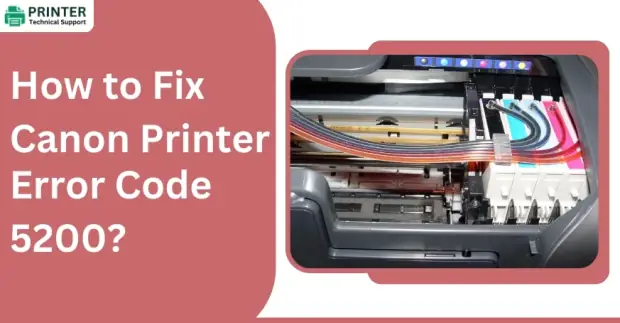
How to Fix Canon Printer Error Code 5200?
The Canon printer error code 5200 is a common issue that often frustrates users. This error typically signals an ink system malfunction, but it can also arise from hardware problems or temperature-related faults. Below, we outline several methods to resolve this issue effectively.
Method 1: Re-setting the Printer
Resetting the printer is often the first step in resolving the error code 5200. Here's how to perform a reset:
Step 1: Turn off the printer by pressing the power button.
Step 2: Press and hold the Stop/Reset button while simultaneously pressing the Power button.
Step 3: While holding the Power button, release the Stop/Reset button.
Step 4: Press the Stop/Reset button twice, then release the Power button.
Step 5: Wait until the printer initializes. When the printer's display turns blank, press the Power button to turn it off.
Step 6: Turn the printer back on and check if the error persists.
Step 7: This process effectively resets the printer and resolves minor glitches that might trigger the error.
Method 2: Check the Ink Levels
The error code 5200 is often related to low or empty ink cartridges. Follow these steps to inspect and resolve ink issues:
Step 1: Open the printer cover and remove the cartridges.
Step 2: Inspect the cartridges for any ink level issues. If one cartridge is empty or significantly low, replace it.
Step 3: Reinstall the cartridges and ensure they are securely seated in their respective slots.
Step 4: Run a test print to check if the issue has been resolved.
In some cases, cleaning the cartridge contacts with a soft cloth can improve connectivity and eliminate the error.
Method 3: Clean the Printhead
A clogged printhead can cause error 5200. Cleaning the printhead might resolve the issue:
Step 1: Remove the ink cartridges from the printer.
Step 2: Lift the printhead out carefully.
Step 3: Place the printhead in a shallow container with warm, distilled water for a few minutes.
Step 4: Allow the printhead to dry completely before reinserting it.
Step 5: Reinstall the ink cartridges and run a printhead cleaning cycle from the printer settings.
This method ensures that any clogs or blockages in the printhead are cleared, which might resolve the error.
Method 4: Adjust the Printer Driver Settings
Sometimes, incorrect printer driver settings can cause error code 5200. Adjusting these settings may help:
Step 1: Open the Control Panel on your computer and navigate to "Devices and Printers."
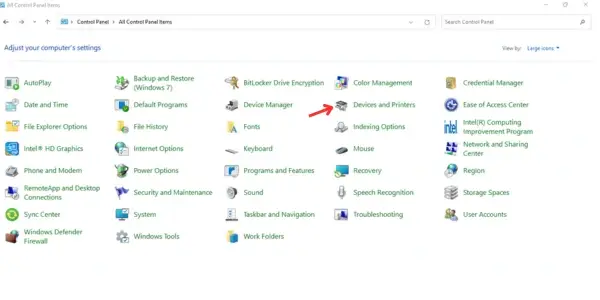
Step 2: Right-click on your Canon printer and select Printing Preferences.
Step 3: Locate the Maintenance tab and click on "Ink Cartridge Settings."
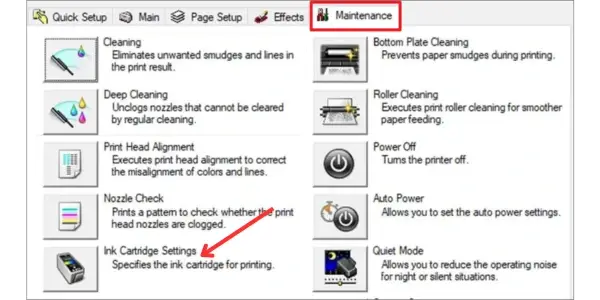
Step 4: Select "Color Only" or "Black Only," depending on your cartridge availability.
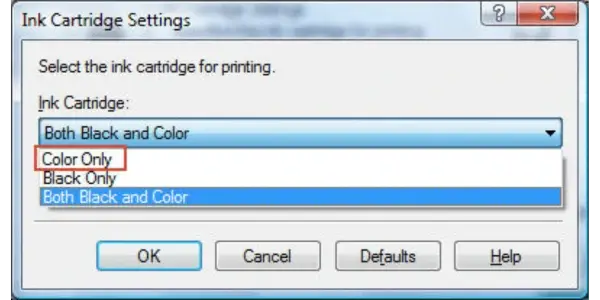
Step 5: Apply the changes and attempt a print job.
This workaround can temporarily resolve the error if it's caused by a malfunctioning cartridge.
Method 5: Perform a Hard Reset
A hard reset can often resolve deeper issues causing error code 5200:
Step 1: Turn off the printer and unplug it from the power source.
Step 2: Wait for about 10–15 minutes to allow the internal components to cool.
Step 3: Plug the printer back in and turn it on.
Step 4: Try printing a test page to confirm if the error has been resolved.
Method 6: Update or Re-install Printer Drivers
Outdated or corrupted printer drivers might also lead to error 5200. Updating or reinstalling the drivers can resolve the issue:
Step 1: Visit Canon’s official website and navigate to the Support or Drivers section.
Step 2: Search for your printer model and download the latest drivers.
Step 3: Uninstall the current drivers from your computer.
Step 4: Install the newly downloaded drivers and restart your system.
Step 5: This ensures your printer uses the latest firmware and software, which often fixes persistent issues.
Method 7: Contact Technician Support (in case of Hardware Issues)
If the error persists, reach out to the technician for assistance.
Also Read:
- How to Connect Canon MG3650 Printer to WiFi?
- How to Fix Canon Printer Error 4102?
- How to Fix Canon Printer Error 6C10?
FAQ for Fix Canon Printer Error Code 5200
- Denver
 Brand: Canon Printer
- Last Update: 3 hours ago
 Related Articles
Top Searches in Canon Printer
Featured Articles
How to Get Canon Printer Online on MAC?
Sep 14, 2026
How to Fix Printer Printing Horizontal Black Lines?
Sep 14, 2026
How to Scan from HP Printer to Computer Windows 10?
Sep 14, 2026
Ricoh Printer Stuck on Processing
Sep 14, 2026
Brother Printer Only Printing in Black and White
Sep 14, 2026
How to Clean Kodak Printhead?
Sep 14, 2026
How to Install Lexmark Printer to Computer Without CD?
Sep 14, 2026
Why My Samsung Printer is Not Printing Clearly?
Sep 14, 2026
Top Questions
Why Won't My Canon Printer Print after Changing an Ink Cartridge?
Sep 14, 2026
How do I Fix a Canon Printer 1403 Error?
Sep 14, 2026
How do I Connect My Canon MG3050 Printer to WiFi?
Sep 14, 2026
How to Change Printer from Offline to Online Canon?
Sep 14, 2026
How to Turn My Ricoh Printer Online from Offline?
Sep 14, 2026
Brother MFC Printer Won't Print Black Despite Full Ink Cartridges
Sep 14, 2026
How to Fix Epson Printer Filter Failed or Stopped on Mac Error?
Sep 14, 2026
How do You Get a Lexmark Printer Back Online?
Sep 14, 2026
Categories
Article Article Article Article Article Article Article Article Article Article