
How to Cancel or Delete a Stuck Print Job in Windows?
Please let me know how to cancel or delete a stuck print job in Windows. I am facing some issues while trying to cancel the printing job. Help me.
 1 Ans
1 Ans- 4 years ago
Cancel or Delete a Stuck Print Job in Windows
You would have definitely heard of several printing problems like paper getting jammed, or printer not printing due to a low level of ink, or paper not being available but this time you should focus on another type of printing problem that may possibly exist in the form of different printing job getting stuck in the queue.
This could ideally be fixed by restarting the print spooler. Friends, I also faced the problem of not being able to “cancel or delete a stuck print job in Windows” which I was able to resolve by actually restarting the print spooler.
So, I would like to take this opportunity to share herewith a quick user guide that tells how to “cancel or delete a stuck print job in Windows” so just don’t wait but quickly peruse this guide for an easy solution.
Facilitating Restart the Print Spooler in a General Scenario
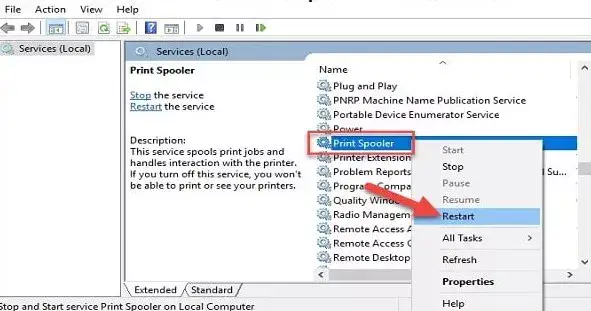
You should work with the objective of clearing and restarting the print spooler as the prime benefit of doing this is that none of the tasks will get deleted or come to an end but will act like all the printing jobs have been sent to printing again.
Step 1 - Initially you just have to give a pause to the “Print Spooler Service”. For this, just click on “Start” followed by typing “services”.
Step 2 - As a consequence of step 1, you just have to click on the “Services” app.
Step 3 - In the divided right pane just search and click on the “Print Spooler” option with the objective of opening its properties window.
Step 4 - Just continue by pressing the “General” tab followed by pressing the “Stop” button.
Step 5 - Now open your File Explorer and browse to the location mentioned here below.
%windir%\System32\spool\PRINTERS
You can alternatively reach the above location by navigating the system32 folder.
Please keep in mind that you will have to grant permission to access the contents of the folder when prompted.
Step 6 - Now select all the files and delete the same.
Step 7 - After deleting the spool files you have to return back to the “Properties” window followed by clicking on the “General” tab. Now you have to press the “Start” button followed by clicking on the OK button.
Consequently, the printing jobs will start getting queued again and if everything remains fine then your printer will start reprinting by re-executing the same printing jobs.
Facilitating to Restart of the Print Spooler in a Batch File
If you are of the opinion that restarting the print spooler will have to be executed several times then you just have to create a batch file and must continue performing the job carefully.
Step 1 - Just write the following commands in three different lines in a new notepad file.
net stop spooler
del /Q /F /S "%windir%\System32\spool\PRINTERS\*.*"
net start spooler
Step 2 - Now save your file with any name but with a mandatory extension “.bat” used as a suffix after the file name coupled with selecting the “All Files (*.*) option in the “Save as Type” option shown just below the Filename text box.
Step 3 - After you have saved the file just double click on the said file to clear the batch. You can perform the said function as many times as you may require.
If restarting the print spooler service doesn’t serve the purpose then you just have to select the printing jobs that are stuck and should delete the same to facilitate continuous printing of the other printing tasks. For this just follow the process mentioned hereunder as it would help you “cancel or delete a stuck print job in Windows”.
Canceling Some Printing Jobs Using the Control Panel
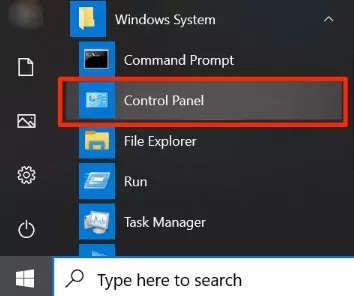
Step 1 - Go to the Control Panel.
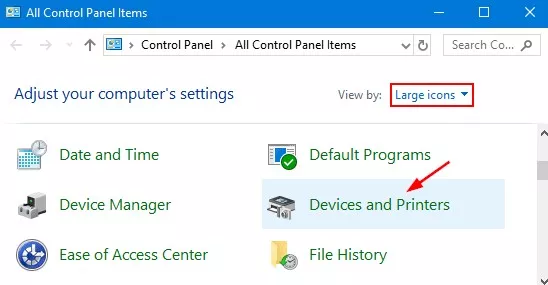
Step 2 - Find and click on “Devices and Printers”.
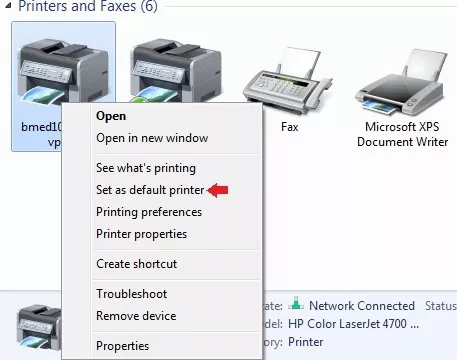
Step 3 - Click on your specific printer and give right-click on the printer to click on “See what’s printing”.
Step 4 - Now select any one printing task and choose to click on the “Restart” option. If the printer starts printing then it’s all fine else cancel the printing task by selecting the “Cancel” option after the selection of the desired printing task.
You may also delete all the tasks just by simply clicking on the “Printer” menu followed by clicking the “Cancel all documents” option. This way you would be able to “cancel or delete a stuck print job in Windows”.
- 2 years ago
 Related Articles
Top Searches in Hp Printer
Featured Articles
How to Get Canon Printer Online on MAC?
Sep 25, 2026
How to Fix Printer Printing Horizontal Black Lines?
Sep 25, 2026
How to Scan from HP Printer to Computer Windows 10?
Sep 25, 2026
Ricoh Printer Stuck on Processing
Sep 25, 2026
Brother Printer Only Printing in Black and White
Sep 25, 2026
How to Clean Kodak Printhead?
Sep 25, 2026
How to Install Lexmark Printer to Computer Without CD?
Sep 25, 2026
Why My Samsung Printer is Not Printing Clearly?
Sep 25, 2026
Top Questions
Why Won't My Canon Printer Print after Changing an Ink Cartridge?
Oct 7, 2020
How do I Fix a Canon Printer 1403 Error?
Dec 30, 2020
How do I Connect My Canon MG3050 Printer to WiFi?
Mar 30, 2021
How to Change Printer from Offline to Online Canon?
Nov 27, 2020
How to Turn My Ricoh Printer Online from Offline?
Feb 20, 2021
Brother MFC Printer Won't Print Black Despite Full Ink Cartridges
Nov 7, 2020
How to Fix Epson Printer Filter Failed or Stopped on Mac Error?
Dec 7, 2021
How do You Get a Lexmark Printer Back Online?
Sep 29, 2020