
How do I Get Windows 10 to Recognize My Printer?
Get Windows 10 to Recognize Printer:
Do you urgently want to print any document and your USB cable is missing that connects the printer with the system? Don’t worry if you are having Windows 10 in the system because it has a feature that will help you to connect your system remotely with the printer.
Here a question arises that how your system will recognize the printer. In this blog, I have provided the answer to how can I get Windows 10 to recognize my printer. It also contains more information related to it that you should be aware of.
How To Establish Connection Between Printer And Window 10 System?
This guide contains steps with the help of which you can connect your printer with the device.
Step 1 : Firstly press the Q+Windows key. This will open the search field in Windows.
Step 2 : In the search field write “printer”. It will display a list of options.
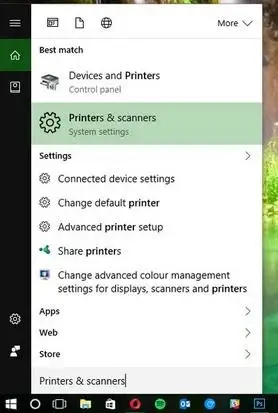
Step 3 : From the appeared list choose the “printer and scanner” option.
Step 4 : Now enable the printer option.
Step 5 : check out the manual that came with the printer to connect it with the wifi network.
( Steps to connect the printer to your device via wifi totally depends on manufacturer and printer.)
Step 6 : Now hit enter on the available option “add a scanner”.
Step 7 : After this list of the printer will appear on the screen. Select your printer.
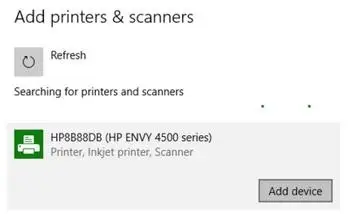
Step 8 : lastly tab on the option “add device”.
Hence your printer is connected to wifi without wires. The above steps are applicable to make a wired connection as well.
Guide - Get Windows 10 To Recognize My Printer
If you are facing a problem in finding your printer then go through this step by step guide and rectify your issue.
Step 1 : Open the search Window screen with the help of the Windows button and Q button available on your keyboard.
Step 2 : In the search section enter “printer”.
Step 3 : From the list of options chooses the “printer and scanner” option.
Step 4 : Now hit enter on the “Add a printer” option.
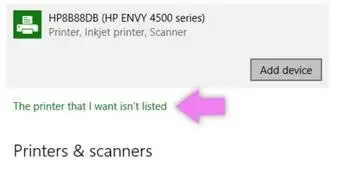
Step 5 : In the appeared screen there will be an option “My printer is not in the list”. Hit enter on that option.
Step 6 : Now select the option -add printer uncovered by network, Bluetooth printer, wireless printer.
Step 7 : Select the printer which you have recently connected.
This is how you can get Windows 10 to recognize my printer. Now take advantage of the connected printer.
Method To Switch The Default Printer:
When you choose any printer many times then your Windows set it as a default printer. If you want to change the default printer then you can do it with the help of the following steps.
Step 1 : Open the search option in the Windows by pressing the Q and Windows key of the keyboard.
Step 2 : Search for the printer.
Step 3 : Now tap on the “scanners” option.
Step 4 : Disable the option -Windows will choose default printer for me.
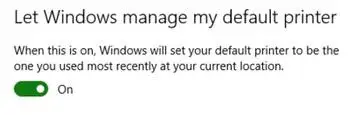
Step 5 : Now select the printer that you wish to set as a default printer.
Step 6 : Click on the option “manage”.
Step 7 : Lastly hit enter on the option “set it as a default printer”.
Hence your default printer settings have been changed.
Troubleshoot Your Printer in Windows 10-
If you are facing any problem while using the printer then you can troubleshoot it with the help of following steps:
Step 1 : In Windows 10 go to the settings.
Step 2 : Click on devices.
Step 3 : after that tab enters on “scanners and printers” option.
Step 4 : Select the printer option.
Step 5 : Navigate to the “manage” button.
Step 6 : Press enter on “troubleshooter run” button.
After following the above steps your printer will run smoothly without any interruption.
Conclusion
In this blog, I have shared with you all the important information related to Windows 10 settings for the printer. I have even provided you a way to get Windows 10 to recognize my printer. I hope this will help you. All the above-mentioned methods are easy to use. Users can follow the methods without taking any help from technical expertise.
Also Read:
- What is HP ePrint and How Can I Use ePrint?
- How to Fix HP Scanner Not Working Issue?
- How to Troubleshoot Access Denied Error While Sharing a Network Printer?
- Mick
 Brand: Hp Printer
- Last Update: 1 hour ago
 Related Articles
Top Searches in Hp Printer
Featured Articles
How to Get Canon Printer Online on MAC?
Sep 23, 2026
How to Fix Printer Printing Horizontal Black Lines?
Sep 23, 2026
How to Scan from HP Printer to Computer Windows 10?
Sep 23, 2026
Ricoh Printer Stuck on Processing
Sep 23, 2026
Brother Printer Only Printing in Black and White
Sep 23, 2026
How to Clean Kodak Printhead?
Sep 23, 2026
How to Install Lexmark Printer to Computer Without CD?
Sep 23, 2026
Why My Samsung Printer is Not Printing Clearly?
Sep 23, 2026
Top Questions
Why Won't My Canon Printer Print after Changing an Ink Cartridge?
Sep 23, 2026
How do I Fix a Canon Printer 1403 Error?
Sep 23, 2026
How do I Connect My Canon MG3050 Printer to WiFi?
Sep 23, 2026
How to Change Printer from Offline to Online Canon?
Sep 23, 2026
How to Turn My Ricoh Printer Online from Offline?
Sep 23, 2026
Brother MFC Printer Won't Print Black Despite Full Ink Cartridges
Sep 23, 2026
How to Fix Epson Printer Filter Failed or Stopped on Mac Error?
Sep 23, 2026
How do You Get a Lexmark Printer Back Online?
Sep 23, 2026
Categories
Article Article Article Article Article Article Article Article Article Article