
What is HP ePrint and How Can I Use ePrint?
How to Use HP ePrint:
The invention of the home printer has made life simpler and easier. If you do not have a printer at home, then you will have to go to an internet cafe and take the services. In case you cannot afford that service, then you will not get the benefit of printing.
Home printing devices enable you to print everything from documents to photographs. Nowadays, home printer has become a necessity in every house. Now, with the advent of advanced technology, a better version has made its entrance in the market.
Today, remote printing has become a preferred choice amongst the customers. HP ePrint has won the hearts of the customers with its remarkable service. It provides you the accessibility of high quality documents from any place. If you don’t know what HP ePrint is, then take a good look below. This is a revolutionary technology, which has a user-friendly design.
What is HP ePrint?
HP ePrint has completely revolutionised the way in which documents get printed. This printing technology enables you to print documents, photos with one touch from any place in the world. The conventional method of printing mandated the use of Bluetooth, Wi-Fi, or USB.
This functionality holds useful in the commercial world and for homely affairs. It is ideal for people who travel a lot as they won’t have to carry their printer device and laptop every place they go to. They can use the facility of HP ePrint to print the documents of their choice.
This ePrint facility comes really handy in situations where a document saved on your smartphone or any other local device needs to be printed immediately. Now, even corporate emergencies can be dealt with because of this service.This printing service gives you access to your printer device through an email. Let us further discuss the connection between email and printing.
If you wish to print a document using HP ePrint service, then all you have to do is to send an email to the email address of your printer. The cloud computing technology that HP ePrint uses a server managed by HP to send a print job.
Requisites for Using HP ePrint?
Mentioned below are some of the things that you will need in order to use HP ePrint.
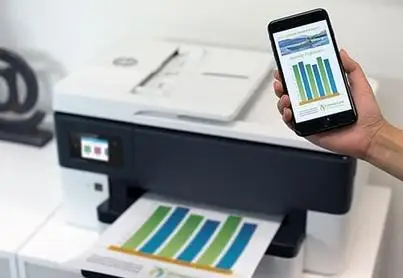
1) Printer Device Supporting HP ePrint Service
The very first thing that you will require for using the HP ePrint technology is an HP printer device that supports HP ePrint service.
In case you don’t have an HP printer device, then just visit the HP store and select a laser or inkjet printer, which is perfect for your professional and personal needs.
2) Email Account
The most impressive feature of this service is that it makes use of the technology that is very common amongst the users. HP uses email technology for ePrint services as it is one of the most prominent platforms on the internet for work purposes.
Presently, there are 3.8 billion users of gmail on the internet. E-mail has turned into a dependable choice for the most recent printing technology.
3) Internet
In order to be able to use HP ePrint, the most basic requirement would be an internet connection. Moreover, the smartphone or tab that contains the document you want to print should also be connected to the internet.
However, it is not necessary for your printer device and smartphone to be connected to the same wireless network. As you are using email facility, there is no need for the two devices to be on the same network.
4) HP Connected Account
This service is particularly used for managing HP ePrint devices. It is very easy to setup and HP ePrint account. This account is going to solve two purposes. One is that it assigns email addresses to a printer machine. Moreover, it will enable you to change the settings of your printer.
Steps to Print Using HP ePring from a Smartphone:
Do you want to learn how you can print from your smartphone using HP ePrint service? If yes, then carry out the steps given below.
To Print a Photo or Doc-
- On your smartphone, open your photo or document that you wish to print.
- Touch the icon of Share or Action.
- Tap on the option of email. This will display a new email message before you.
- Enter the address of your printer device.
- Enter the Subject and then select Send.
To Print an Email-
- Open the mail that you wish to print.
- Select Forward.
- Enter the email address of your printer and then select Send.
To Print a Webpage-
- On your smartphone, open the page that you wish to print.
- Tap on the screen and hold it till the whole content gets selected.
- After that, select the option of Copy.
- Open a new doc on your smartphone.
- Select and then Hold.
- Now, paste the content on a blank document.
- Save the doc after adding the content to it.
- Send it as an attachment to your printer through an email.
So, this is all you need to know about what is HP ePrint and how to use it.
Also Read:
- How to Fix HP Scanner Not Working Issue?
- How to Troubleshoot Access Denied Error While Sharing a Network Printer?
- How to Fix HP Laptop Touchpad Not Working on Windows 10?
- Mick
 Brand: Hp Printer
- Last Update: 4 hours ago
 Related Articles
Top Searches in Hp Printer
Featured Articles
How to Get Canon Printer Online on MAC?
Sep 17, 2026
How to Fix Printer Printing Horizontal Black Lines?
Sep 17, 2026
How to Scan from HP Printer to Computer Windows 10?
Sep 16, 2026
Ricoh Printer Stuck on Processing
Sep 17, 2026
Brother Printer Only Printing in Black and White
Sep 17, 2026
How to Clean Kodak Printhead?
Sep 17, 2026
How to Install Lexmark Printer to Computer Without CD?
Sep 17, 2026
Why My Samsung Printer is Not Printing Clearly?
Sep 17, 2026
Top Questions
Why Won't My Canon Printer Print after Changing an Ink Cartridge?
Sep 16, 2026
How do I Fix a Canon Printer 1403 Error?
Sep 17, 2026
How do I Connect My Canon MG3050 Printer to WiFi?
Sep 17, 2026
How to Change Printer from Offline to Online Canon?
Sep 17, 2026
How to Turn My Ricoh Printer Online from Offline?
Sep 17, 2026
Brother MFC Printer Won't Print Black Despite Full Ink Cartridges
Sep 16, 2026
How to Fix Epson Printer Filter Failed or Stopped on Mac Error?
Sep 17, 2026
How do You Get a Lexmark Printer Back Online?
Sep 16, 2026
Categories
Article Article Article Article Article Article Article Article Article Article